> Markdown version of https://www.asyncapi.com/docs/community/060-meetings-and-communication/MEETINGS_ORGANIZATION
> Index: https://www.asyncapi.com/llms.txt
# Meetings Organization
This document covers the aspects of different meeting organizations at AsyncAPI.
## FAQ
### What do I need to schedule a meeting?
To schedule a meeting, you need to be:
- one of the licensed Zoom users associated with the AsyncAPI Zoom account. It is required because only licensed users can start meetings, live transcripts, and streaming.
- GitHub Action workflow for `Ad Hoc` meeting scheduling should be updated. Newly licensed users should be added as alternative hosts.
- a member of [GitHub team called meetings-organizers](https://github.com/orgs/asyncapi/teams/meetings-organizers). This is required because only repository maintainers can manually trigger GitHub Actions workflows. This group has a `Maintain` role in the `community` repository where meeting automation is implemented.
- a member of a team in the AsyncAPI Restream account. It is required because hosts must log in to Restream before streaming the meeting from Zoom and modify the stream's title that will appear on social platforms.
- a member of the AsyncAPI YouTube account. It is required because hosts need to add live stream recordings to the proper YouTube Playlist after the meeting is over to improve recording discoverability.
### What meetings do we have?
* `Regular` meetings: regular meetings with a dedicated area of interest and individual brand (Examples: `Community Meeting` or `Thinking Out Loud`)
* `Ad Hoc` meetings: meetings for topics that do not match any **regular** meetings and should be organized separately. Every official AsyncAPI Zoom licensed user should have the right to schedule it.
### How do I schedule a new meeting?
1. Go to [**Actions** tab](https://github.com/asyncapi/community/actions)
1. Select one of the workflows that start with **Schedule**. Choose one that represents the meeting you want to schedule.
1. Click the **Run workflow** button.
1. Provide data required by the form and click the **Run workflow** button within the form.
We have an automated workflow in place:
1. Automation starts after clicking **Run workflow**. (Unless there is another GitHub Actions outage and proper events are not delivered to automation :smiley: )
1. It creates a new meeting in Zoom. It is, by default, configured to support live streaming
1. It creates a GitHub issue with all details about the meeting
1. It creates a new Google Calendar entry with special metadata containing the GitHub issue number
1. It sends a tweet with information about a newly scheduled event
### What are my responsibilities as meeting host?
Technically, there are two types of meetings:
- Zoom-first: The meeting takes place on Zoom and is streamed to different channels through integration with Restream.io. The goal is to enable as many people as possible to join the live conversation.
- Restream-first: The meeting takes place on Restream and is streamed to different channels. These meetings are focused on showing or explaining some topic without a live audio conversation with the audience.
#### Zoom-first
This is what you need to do to kick it off:
1. Start your meeting by opening a Zoom meeting. Make sure you are logged into Zoom with your AsyncAPI licensed account.
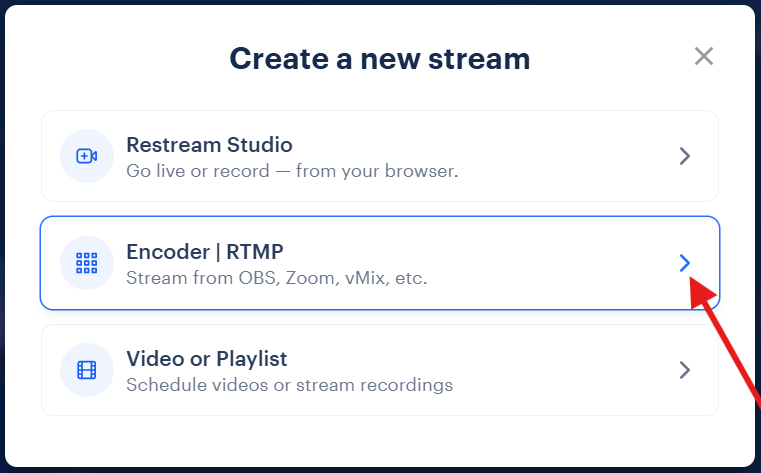
1. Log into [Restream.io](https://app.restream.io/home) and select `Encoder|RMTP (Stream from OBS,Zoom,VMix,etc.)` option:
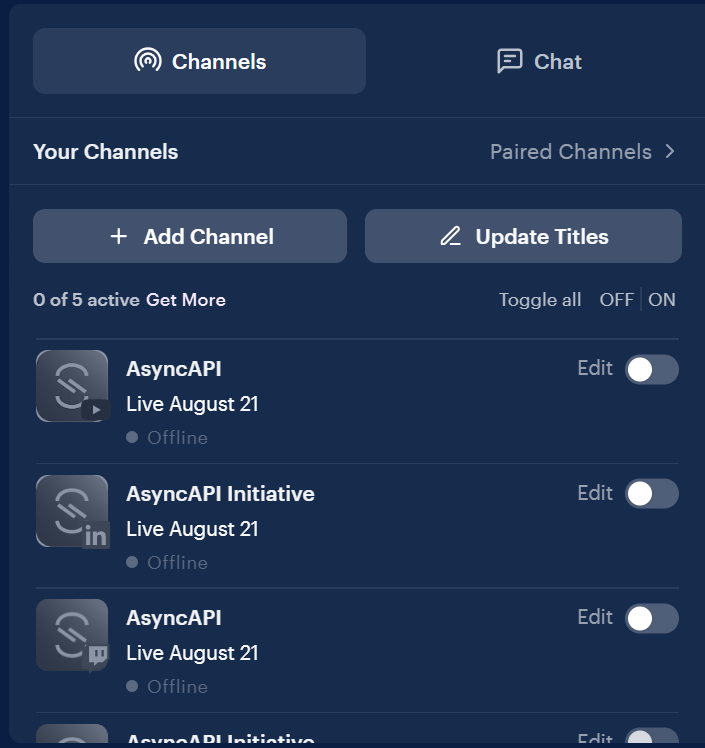
 1. Click `Update Titles` card:
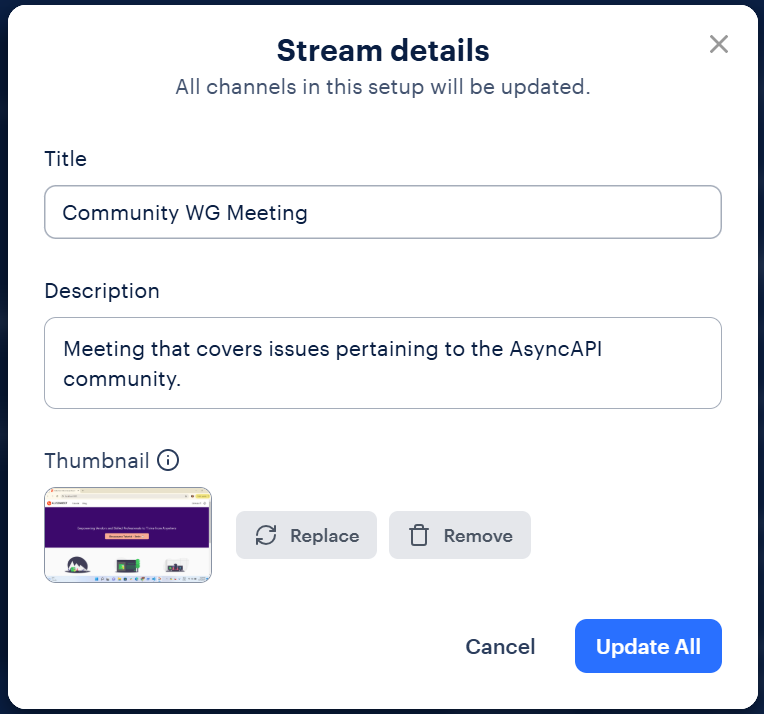
 1. Provide title and description:
- Title for the live stream that corresponds to the meeting you just started.
- Provide a meeting description even if you plan to leave it brief; otherwise, the previous description from another stream might be reused.
- Add a thumbnail for the stream, as platforms like YouTube require one.
1. Provide title and description:
- Title for the live stream that corresponds to the meeting you just started.
- Provide a meeting description even if you plan to leave it brief; otherwise, the previous description from another stream might be reused.
- Add a thumbnail for the stream, as platforms like YouTube require one.
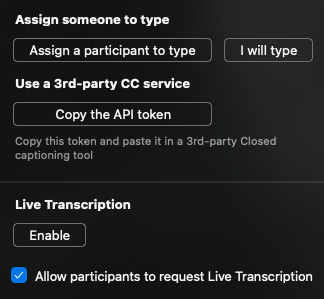
 1. In Zoom, click the `Live Transcript` button to start transcribing the meeting:

1. Confirm transcriptions with `Enable` button:
1. Click `More`:

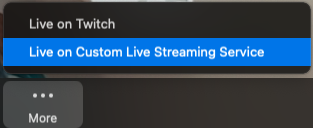
1. Select `Live on Custom Live Stream Service` option to start streaming to Restream and, therefore, to official AsyncAPI social networks:
#### Restream-first
You must start with YouTube first, even though Restream can directly stream there. It is because by
This is what you need to do to kick it off:
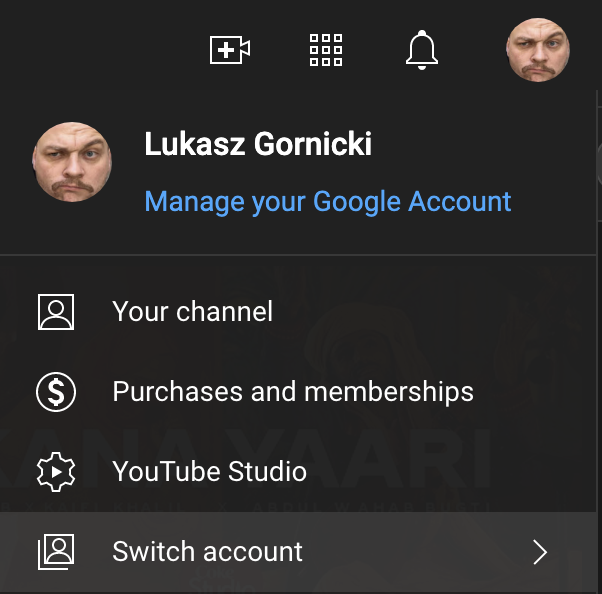
1. In [YouTube](https://youtube.com), click on your profile picture and select `Switch account`:
1. In Zoom, click the `Live Transcript` button to start transcribing the meeting:

1. Confirm transcriptions with `Enable` button:

1. Click `More`:

1. Select `Live on Custom Live Stream Service` option to start streaming to Restream and, therefore, to official AsyncAPI social networks:

#### Restream-first
You must start with YouTube first, even though Restream can directly stream there. It is because by
This is what you need to do to kick it off:
1. In [YouTube](https://youtube.com), click on your profile picture and select `Switch account`:
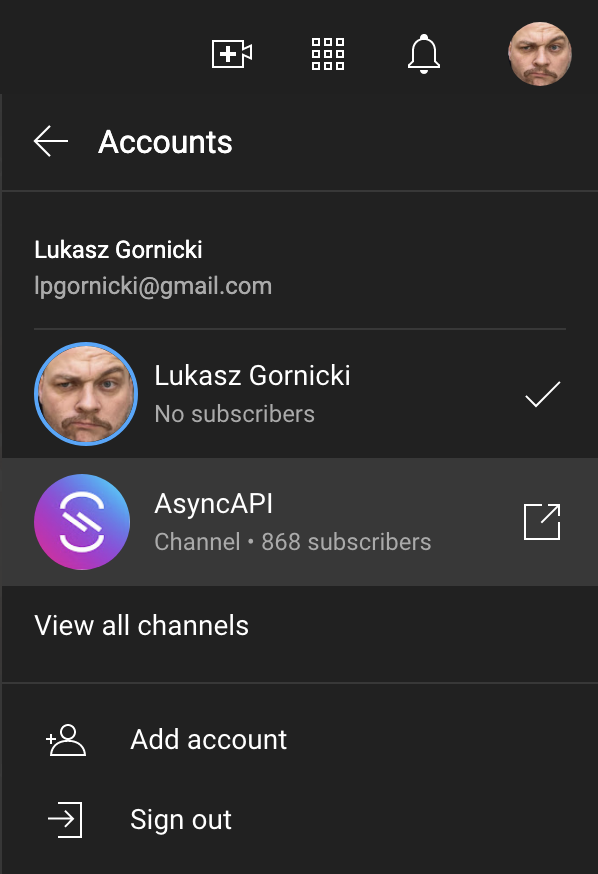
 1. Select `AsyncAPI`. If you do not see it on the list, it means you did not have all the access rights needed to set up a live stream:
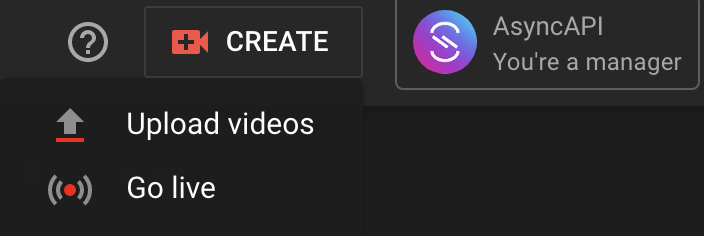
 1. Click on `Create` and select `Go live`:
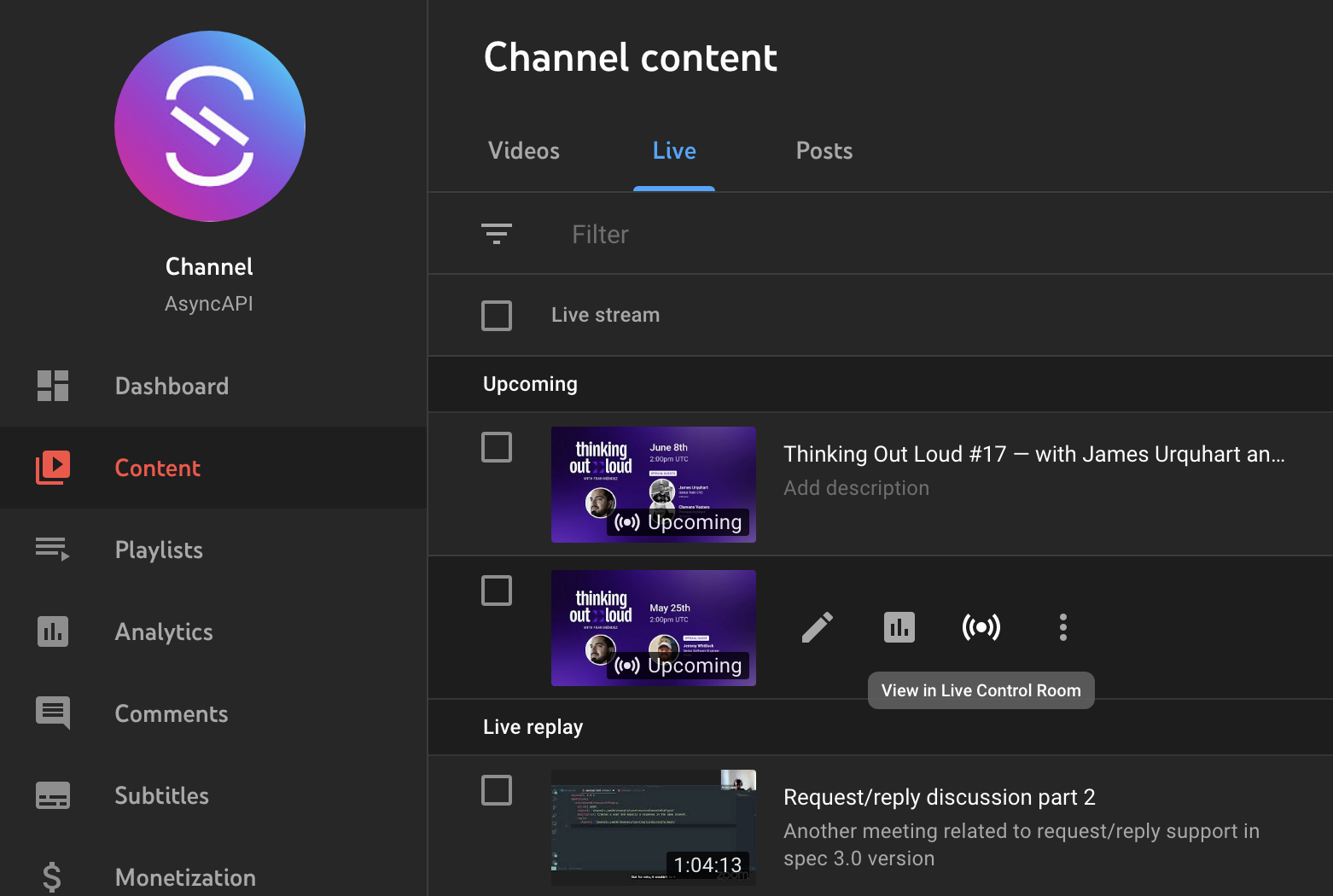
 1. Once a new live stream is created, in the list of `Upcoming` streams, click `View in Live Control Room`
  icon next to your live stream:
 1. Enable `Closed captions`:
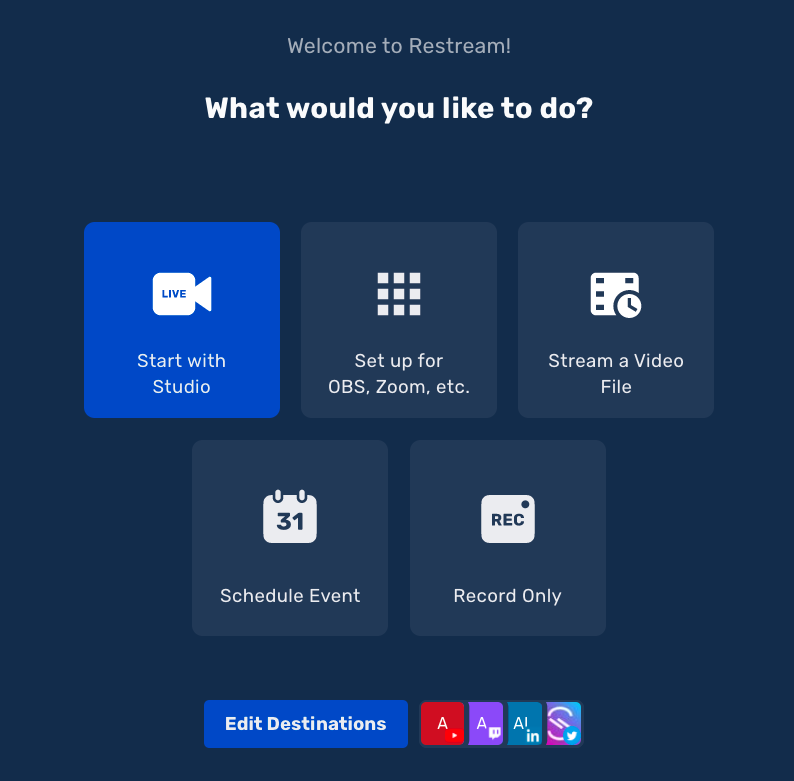
 1. Log into [Restream.io](https://app.restream.io/home) and select `Start with Studio` option:
 1. After enabling the audio, video and providing the name, you will see a Restream Studio.
1. `Edit` the title and description of the stream:
1. After enabling the audio, video and providing the name, you will see a Restream Studio.
1. `Edit` the title and description of the stream:
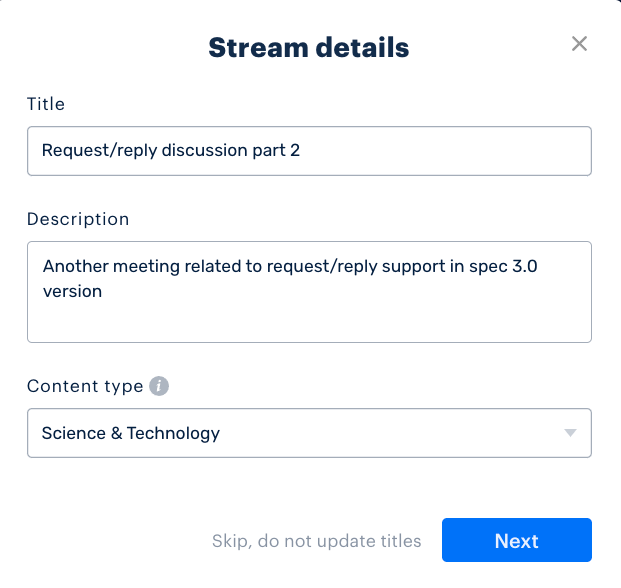
 1. Provide title and description and click `Next`:
- Title for the live stream that corresponds with the meeting you just started,
- Meeting description must be provided even if the field is empty; otherwise, the old one from other streams will be used.
1. Provide title and description and click `Next`:
- Title for the live stream that corresponds with the meeting you just started,
- Meeting description must be provided even if the field is empty; otherwise, the old one from other streams will be used.
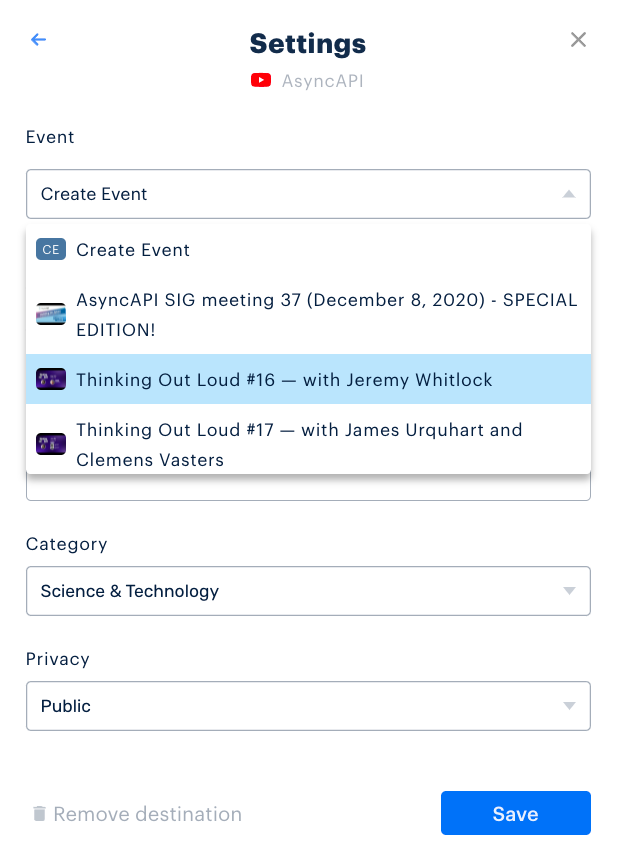
 1. `Edit` YouTube destination:
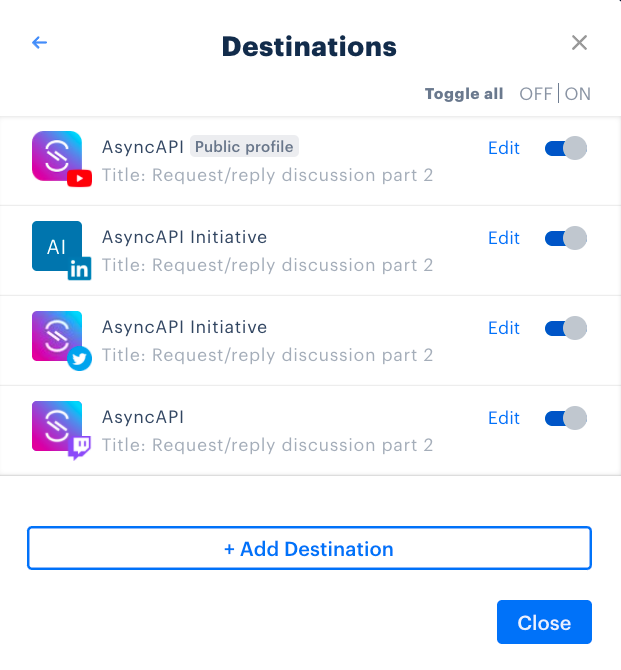 1. Make sure you do not create a new event, but select the one you already created on YouTube, with closed captions on:
 1. You are ready to `Go Live`
#### Post meeting
Once the meeting is over, if applicable:
1. Provide related GitHub Issue meeting notes and then close the issue.
1. Login to YouTube and add the recorded live stream to the respective YouTube Playlist.
### How can I get notified about upcoming meetings?
Subscribe to the [AsyncAPI Newsletter](https://asyncapi.com/newsletter) to get information about upcoming meetings.
We have an automated workflow in place:
1. Automation starts every Friday at midnight
1. It gets information from Google Calendar about all the meetings scheduled for the upcoming week
1. It schedules a MailChimp campaign to send emails with a list of meetings. It's sent on Friday at 11 AM in the subscriber's time zone
### Where can I find the AsyncAPI calendar?
- [Main link to calendar](https://calendar.google.com/calendar/embed?src=c_q9tseiglomdsj6njuhvbpts11c%40group.calendar.google.com&ctz=UTC)
- [iCal/ics file](https://calendar.google.com/calendar/ical/c_q9tseiglomdsj6njuhvbpts11c%40group.calendar.google.com/public/basic.ics)
### How do I cancel a meeting?
If you need to cancel a meeting, simply close the corresponding meeting issue.
We have an automated workflow in place:
1. Automation starts when the GitHub issue is closed
1. It checks if a closed issue represents a future event
1. It removes meetings from the AsyncAPI Google Calendar
### How do I register for a new regular meeting?
Start [discussion in community repository](https://github.com/asyncapi/community/discussions). Explain the idea and justify why it requires a separate meeting. We currently have [approval from the Technical Steering Commitee](https://github.com/asyncapi/community/discussions/295) to pay for up to 8 Zoom licenses.
Once a new meeting is approved, add a [new workflow like this one](https://github.com/asyncapi/community/blob/master/.github/workflows/create-event-community-meeting.yml) and a [new GitHub issue template like this one](https://github.com/asyncapi/community/blob/master/.github/workflows/create-event-helpers/issues_templates/community.md).
### How can I become a host?
Once your `Regular` meeting gets approved, contact `Fran Mendez` so he can give you access to all required tools.
1. You are ready to `Go Live`
#### Post meeting
Once the meeting is over, if applicable:
1. Provide related GitHub Issue meeting notes and then close the issue.
1. Login to YouTube and add the recorded live stream to the respective YouTube Playlist.
### How can I get notified about upcoming meetings?
Subscribe to the [AsyncAPI Newsletter](https://asyncapi.com/newsletter) to get information about upcoming meetings.
We have an automated workflow in place:
1. Automation starts every Friday at midnight
1. It gets information from Google Calendar about all the meetings scheduled for the upcoming week
1. It schedules a MailChimp campaign to send emails with a list of meetings. It's sent on Friday at 11 AM in the subscriber's time zone
### Where can I find the AsyncAPI calendar?
- [Main link to calendar](https://calendar.google.com/calendar/embed?src=c_q9tseiglomdsj6njuhvbpts11c%40group.calendar.google.com&ctz=UTC)
- [iCal/ics file](https://calendar.google.com/calendar/ical/c_q9tseiglomdsj6njuhvbpts11c%40group.calendar.google.com/public/basic.ics)
### How do I cancel a meeting?
If you need to cancel a meeting, simply close the corresponding meeting issue.
We have an automated workflow in place:
1. Automation starts when the GitHub issue is closed
1. It checks if a closed issue represents a future event
1. It removes meetings from the AsyncAPI Google Calendar
### How do I register for a new regular meeting?
Start [discussion in community repository](https://github.com/asyncapi/community/discussions). Explain the idea and justify why it requires a separate meeting. We currently have [approval from the Technical Steering Commitee](https://github.com/asyncapi/community/discussions/295) to pay for up to 8 Zoom licenses.
Once a new meeting is approved, add a [new workflow like this one](https://github.com/asyncapi/community/blob/master/.github/workflows/create-event-community-meeting.yml) and a [new GitHub issue template like this one](https://github.com/asyncapi/community/blob/master/.github/workflows/create-event-helpers/issues_templates/community.md).
### How can I become a host?
Once your `Regular` meeting gets approved, contact `Fran Mendez` so he can give you access to all required tools.